Bitdefender Flagging World of Warcraft as Malware After Patch 1.2.7, Safe Fix Guide
Bitdefender flagging World of Warcraft or Battle.net as malware after patch 1.2.7? Here is how to safely restore Wow.exe, add proper exceptions, repair the game, and report a possible false positive.
NoobSidious
6/16/20266 min read
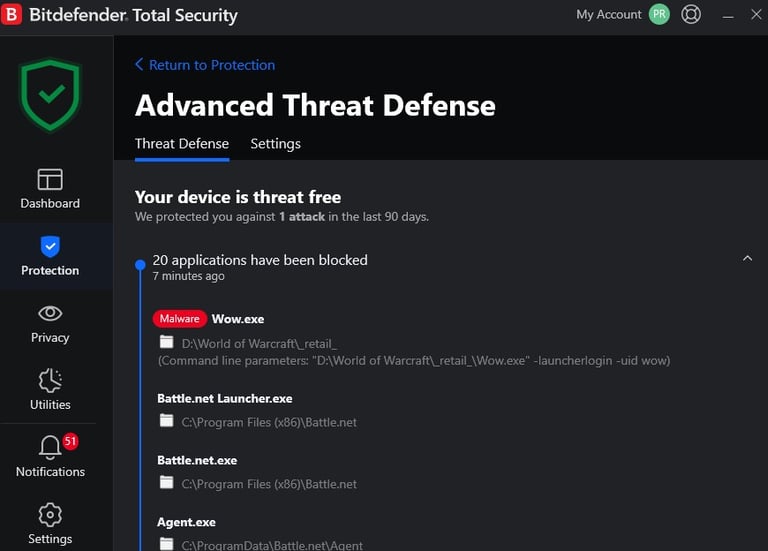
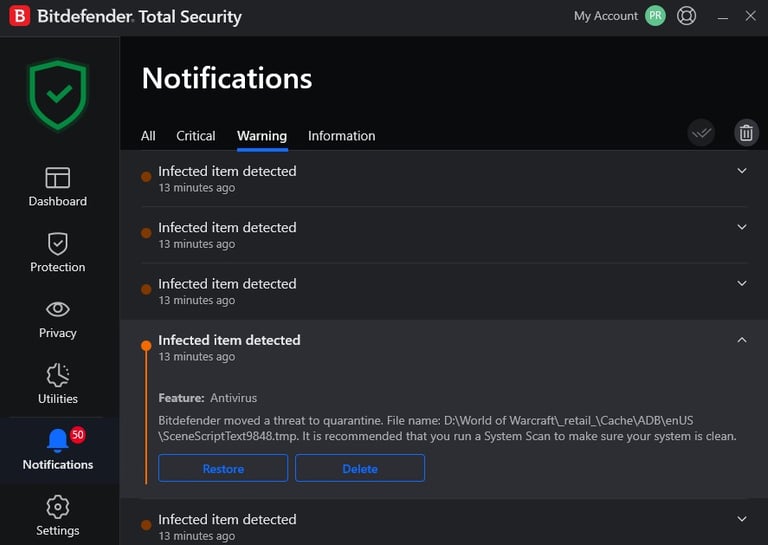
After the latest World of Warcraft patch 1.2.7 update, some players may see Bitdefender suddenly flagging Wow.exe, Battle.net.exe, Battle.net Launcher.exe, or Agent.exe as malware.
That is scary, especially when your antivirus starts removing game files like it just saw a raid boss casting a one-shot mechanic.
Greetings, Denizens of the Azeroth Galaxy!
🌀The Innkeeper’s Note (TL;DR)
Bitdefender Advanced Threat Defense can block applications when their behavior looks suspicious. After a big patch, games and launchers may update files, modify folders, restart agents, download new components, or change how the executable runs.
That can sometimes trigger a behavior-based detection.
In this case, Bitdefender may flag files like:
D:\World of Warcraft\_retail_\Wow.exe
C:\Program Files (x86)\Battle.net\Battle.net Launcher.exe
C:\Program Files (x86)\Battle.net\Battle.net.exe
C:\ProgramData\Battle.net\Agent\Agent.exe
Because the detection appeared right after the World of Warcraft patch, and because it affects official Battle.net and WoW files together, this is likely a false positive.
Still, verify everything before restoring files.

Important Safety Warning
Do not disable your antivirus permanently.
Do not download replacement Wow.exe files from Discord, forums, Reddit, file-sharing sites, or random Google results.
Do not whitelist your entire drive.
Only restore files if they came from the official World of Warcraft and Battle.net installation folders.
Think of it like a Mythic+ pull.
Move carefully, do not panic, and do not stand in the suspicious green circle.
Step 1, Update Bitdefender First
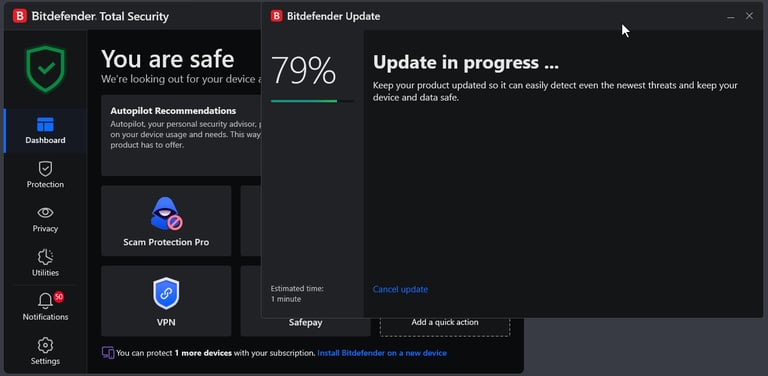
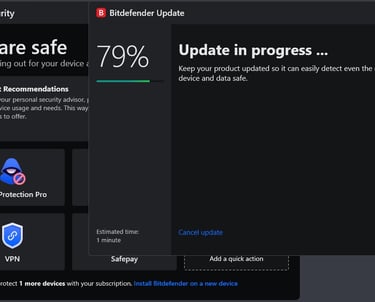
Before restoring anything, update Bitdefender.
Open Bitdefender and check for security updates. After the update finishes, restart your computer.
Sometimes false positives are corrected quickly through a detection update. A restart also helps make sure the security engine and Battle.net services are not stuck in a bad state.
After restarting, check if Bitdefender still flags the same files.
Step 2, Check the Quarantined Files
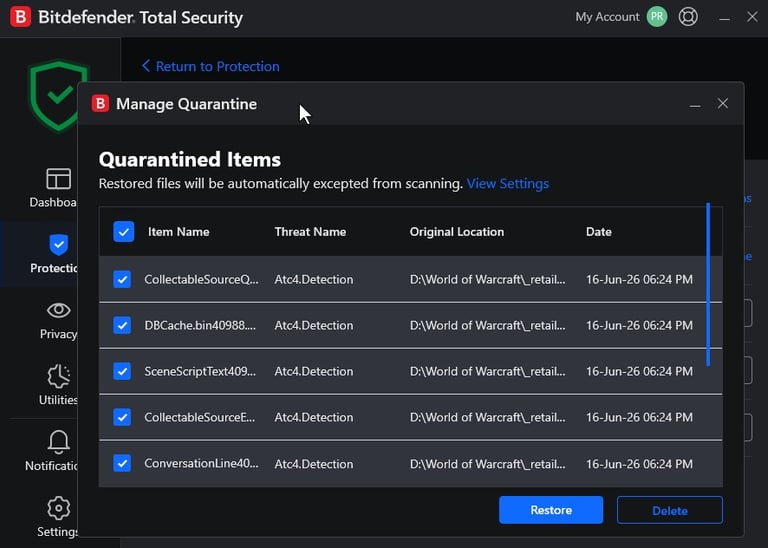
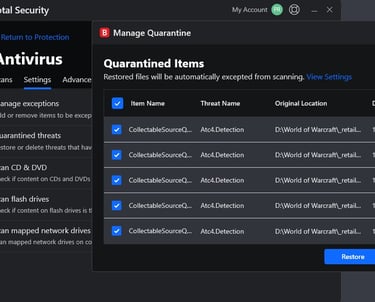
Open Bitdefender and go to the quarantine section.
Look for the detected files and confirm their original locations.
The paths should match your official World of Warcraft and Battle.net folders.
Common safe-looking paths include:
D:\World of Warcraft\_retail_\Wow.exe
C:\Program Files (x86)\Battle.net\Battle.net.exe
C:\Program Files (x86)\Battle.net\Battle.net Launcher.exe
C:\ProgramData\Battle.net\Agent\Agent.exe
If the file path looks strange, like a random Temp folder, Downloads folder, cracked game folder, unknown user folder, or suspicious duplicate location, do not restore it.
Step 3, Restore the Files From Quarantine
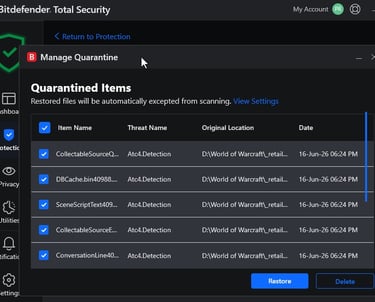
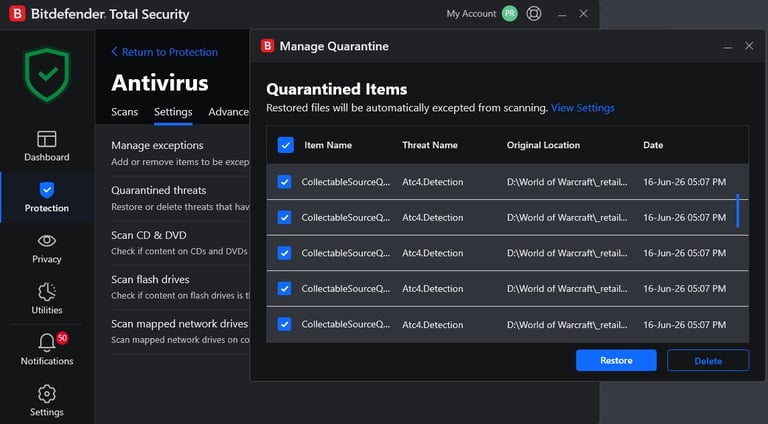
If the files are from the official Battle.net and World of Warcraft folders, restore them from Bitdefender Quarantine.
General path:
Protection > Antivirus > Open > Settings > Manage Quarantine > Restore
Restore only the trusted files from the official install path.
After restoring them, do not launch the game yet. Add the proper exceptions first, or Bitdefender may instantly remove the files again.
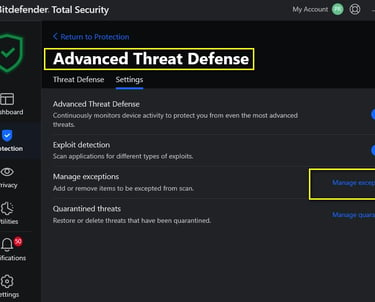
Step 4, Add Advanced Threat Defense Exceptions
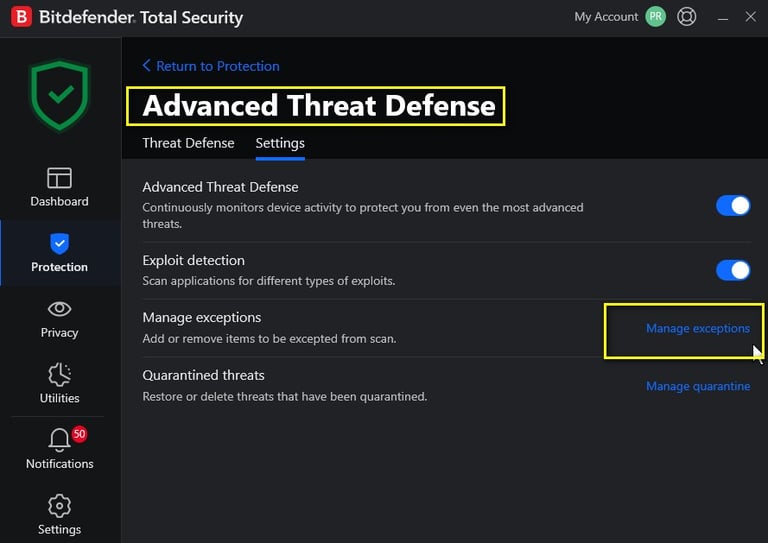
This part matters because the detection is coming from Advanced Threat Defense.
Open Bitdefender and go to:
Protection > Advanced Threat Defense > Open > Settings > Manage Exceptions
In some Bitdefender layouts, this may appear under:
Services > Protection > Advanced Threat Defense
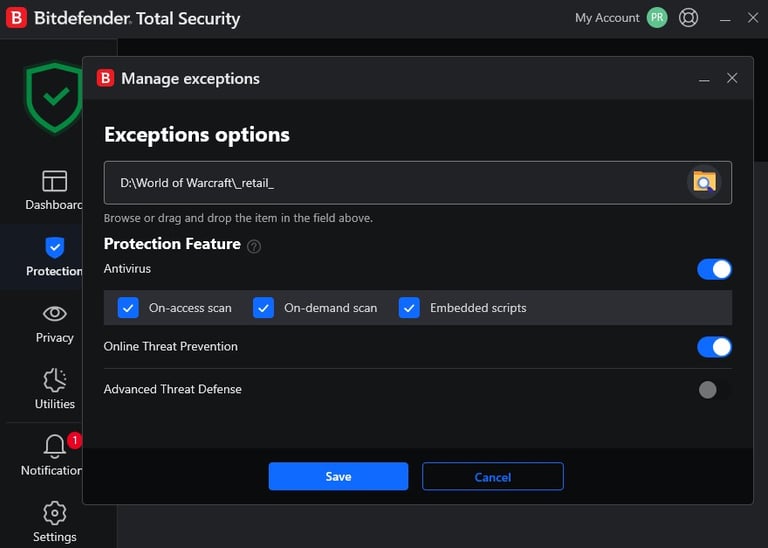
Add exceptions for the exact executable files, not the entire drive.
Suggested executable exceptions:
D:\World of Warcraft\_retail_\Wow.exe
C:\Program Files (x86)\Battle.net\Battle.net.exe
C:\Program Files (x86)\Battle.net\Battle.net Launcher.exe
C:\ProgramData\Battle.net\Agent\Agent.exe
If your World of Warcraft is installed in another folder, use your real path instead.
Example:
C:\Games\World of Warcraft\_retail_\Wow.exe
Advanced Threat Defense exceptions are usually best for executable files, so focus on the .exe files involved.
Step 5, Add Antivirus Exceptions for the Game Folders
Bitdefender keeps scanning or removing files during patching, add antivirus exceptions for the official game and launcher folders.
Open:
Protection > Antivirus > Open > Settings > Manage Exceptions
Add the official folders:
D:\World of Warcraft\World of Warcraft Launcher.exe
D:\World of Warcraft\_retail_\Wow.exe
C:\Program Files (x86)\Battle.net\
C:\ProgramData\Battle.net\
Only add these if you are sure they are your real official install folders.
Check the paths on your machine.
Do not add your whole C:\ drive or D:\ drive.
That is too broad and not safe.
Step 6, Run Battle.net Scan and Repair
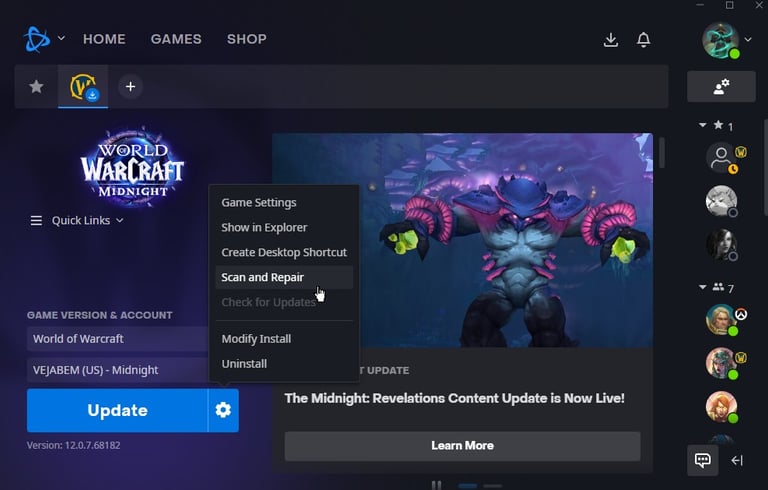
Now open the Battle.net launcher.
Go to World of Warcraft.
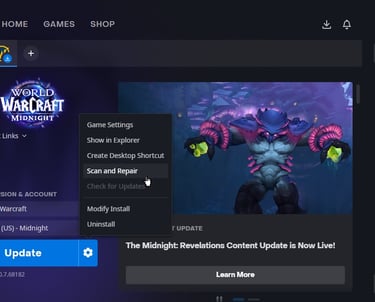
Click the gear icon or options menu near the Play button.
Choose Scan and Repair.
Let Battle.net check the installation and replace missing or damaged files.
This step is important because Bitdefender may have removed or blocked several files during the patch process.
Scan and Repair helps clean the mess without downloading random files from unsafe places.
Step 7, Restart and Test the Game
After the repair finishes, restart your computer again.
Then open Battle.net and launch World of Warcraft normally.
If the game opens without Bitdefender blocking it, the issue is probably fixed.
If Bitdefender flags the files again, do not keep restoring them forever. Submit a false positive report to Bitdefender and wait for confirmation.
Step 8, Report the Detection to Bitdefender
You should report this to Bitdefender so they can review the files and confirm if it is a false positive.
What Not to Do
Do not permanently turn off Bitdefender.
Do not restore files from strange folders.
Do not download game executables from random websites.
Do not whitelist an entire drive.
Do not ignore repeated detections if Bitdefender keeps blocking the same files after exceptions and repair.
Security first, Azeroth second. Your mount collection can wait five minutes while you verify the files.
Final Fix Checklist
Update Bitdefender.
Restart your computer.
Check Bitdefender Quarantine.
Confirm the original file paths.
Restore only official WoW and Battle.net files.
Add Advanced Threat Defense exceptions for the .exe files.
Add Antivirus exceptions for official WoW and Battle.net folders.
Run Battle.net Scan and Repair.
Restart again.
Report the possible false positive to Bitdefender.
Final Thoughts
Getting your main game flagged as malware is never fun. It feels like pulling the boss and realizing your healer got disconnected.
But do not panic, In many cases, this kind of detection after a patch can be fixed safely by restoring trusted files, adding precise exceptions, and repairing the installation through Battle.net.
Just do it carefully.
Never trust random replacement files, never disable your protection forever, and always report possible false positives so Bitdefender can review them properly.
LIVE LONG, PLAY WOW

✎ᝰ About the Author
Noob Sidious is a veteran World of Warcraft player, husband, and father. With a few years of experience working in technology, including QA engineering, programming, and data analysis, Noob Sidious brings a unique blend of gaming expertise and tech-savvy humor to the WoW community. Known for his sarcastic wit, he turns even the most epic wipe into a legendary tale. When he's not dominating Azeroth or cracking jokes, you’ll find him balancing family life and crafting content that entertains, educates, and connects WoW players, all while embodying the Emperor’s style.


✨ Legendary Screen-Free Reset ✨
The Legendary Screen-Free Reset brings together fun, challenging, and themed word search puzzle books designed for relaxation, brain training, and entertainment.
And you will also support this project.
Perfect for adults, teens, and older kids, these puzzle books are created with easy-to-read print, making them accessible to casual solvers and puzzle lovers alike.
Whether you’re looking for a thoughtful gift, a screen-free activity, or just a way to unwind, the Legendary Screen-Free Reset is your best pick.
❤️ Maintaining this PROJECT takes more mana than a Disc Priest in a 10-minute raid encounter. If you’ve found my guides helpful, AND LIKE THE PROJECT, consider tossing a Major Mana Potion (or some real-world gold) my way to keep the servers running!
© 2025 WoWPrime. All rights reserved. Live Long, Play WOW
⚠️ Disclaimer
wowprimer.com is an independent, fan-driven project created for entertainment, commentary, and educational purposes. We are not affiliated with, endorsed by, or officially connected to Blizzard Entertainment, World of Warcraft, or any other companies mentioned on this site, unless explicitly stated.
All trademarks, copyrights, logos, names, and images are the property of their respective owners. Any use of these elements is made under Fair Use principles for the purposes of review, commentary, news reporting, and non-commercial fan expression.
Some articles, reviews, or recommendations may contain affiliate links or sponsored mentions. If you click on these links and make a purchase, we may earn a small commission at no additional cost to you. We only feature products, services, or experiences we genuinely believe may be of interest or value to our readers.
All content is provided “as is” for informational and entertainment purposes only and should NOT be considered official advice, endorsement, or representation of any third-party company.
SUBSCRIBE
We accept USDT or any token on the BNB Smart Chain.